
Shelves tell BookPine what you own and what you want to read. Reading logs tell it what you actually read. Almost everything else in the app, including goals, statistics, streaks, and both calendars, is built from your reading logs rather than your shelves.
That distinction trips up a lot of new users. Moving a book to the Read shelf does not move your yearly goal, and it does not add a day to your streak. This guide covers the whole tracking system, from creating your first log to reading the calendars, and explains the parts that behave in ways you might not expect.
Reading logs
A reading log records one pass through one book: when you started, when you finished, what edition and format you used, how long the book is, and how far into it you are.
Because each log is a single pass, re-reads get their own log. You can keep up to five reading logs per book, so a book you have read four times still has room for one more.
You will find your logs in two places. On a book page, the Journal tab has a Reading Log section. Across your whole library, the web app has Library → Reading Log, and mobile has Library → Reading Log. Both let you search by book and filter by status (All Statuses, Completed, In Progress, Did Not Finish) and by format.
Creating a log
Open a book, go to the Journal tab, and choose Add Log. On mobile you can also use the Add Log button under Quick Actions on the Details tab.
The form asks for:
- Start Date (required) and an optional Start Time
- End Date and End Time, which you leave empty while you are still reading
- Book Format: Hardcover, Paperback, Spiral-bound, eBook, Kindle, or Audiobook
- Track, which is the unit you want to count in: Pages, Chapters, Progress %, Location, or Time
- Total length in that unit, such as total pages or total chapters
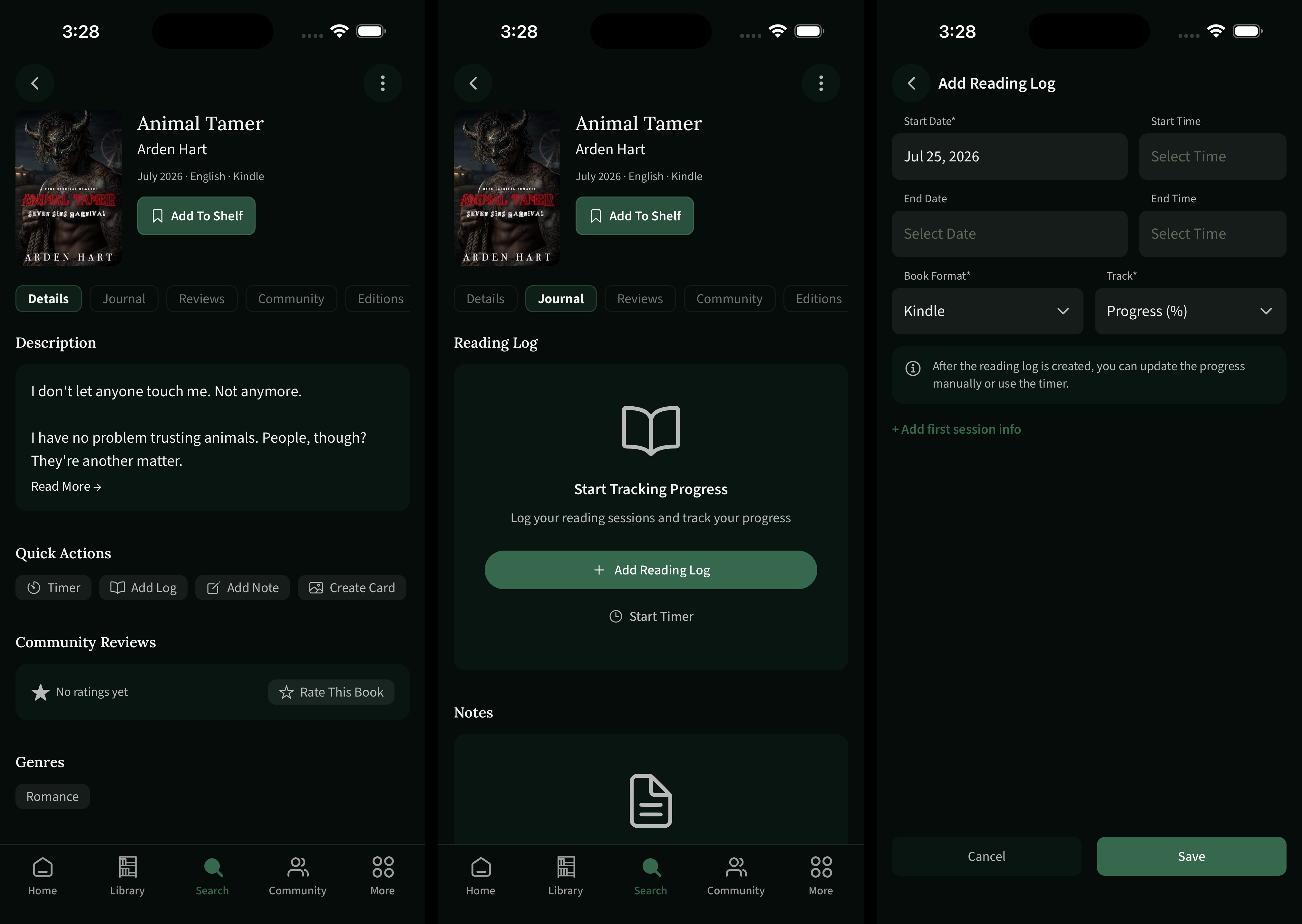
BookPine picks a sensible default unit from the format. Audiobooks track in Time, Kindle books track in Progress %, and everything else tracks in Pages. Time is only offered when the format is Audiobook, since minutes only make sense for listening.
Progress % is the low-effort option. You do not enter a page count at all, you just move a slider from 0 to 100.
Location is there for Kindle readers who prefer Amazon's location numbers over estimated page numbers.
Logging a book you already finished
If you fill in both a start date and an end date for a book you read over several days, BookPine spreads the reading across that range rather than dumping it all on one day. The form tells you this directly:
Progress will be split evenly across each day in the range. To log each day manually, leave the end date empty and update progress day by day after.
So a 300-page book logged from the 1st to the 10th becomes ten estimated sessions of 30 pages. This is what makes imported history and back-dated books show up sensibly on your calendar and in your statistics. It also means back-logging an old book can retroactively extend your streak, which is intentional.
Create Reading Log on Read
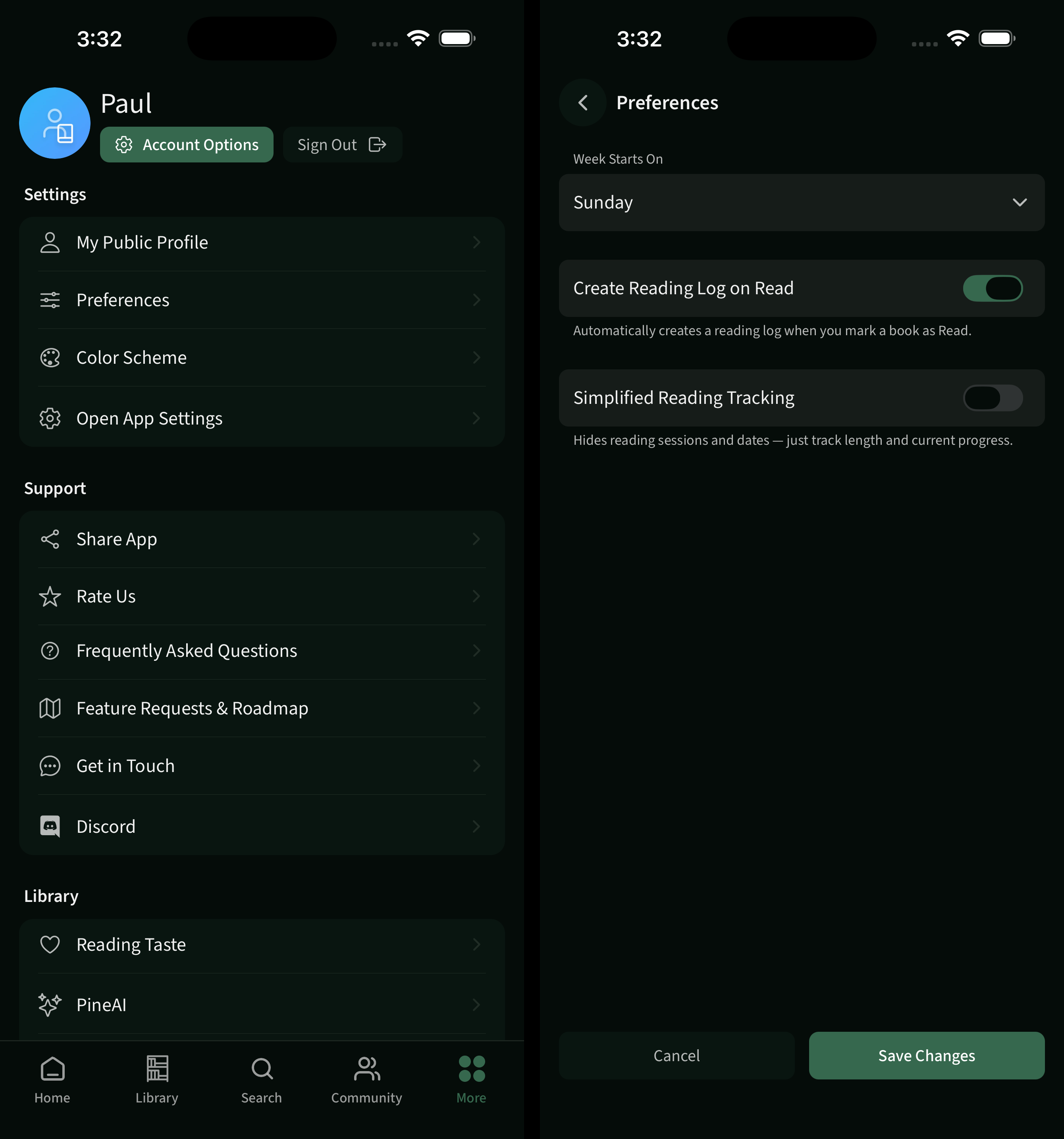
If you would rather not fill in a form every time, turn on Create Reading Log on Read in your preferences. The setting describes itself as:
Automatically creates a reading log when you mark a book as Read.
It is off by default. With it on, moving a book to the Read shelf creates a completed reading log for you. BookPine uses the date you moved the book to Currently Reading as the start date when it knows it, and falls back to today when it does not. Books with no known page count are logged as 100% complete on a percentage scale.
The automatic log is skipped in three cases: when you already have an unfinished log for that book, when you have already hit the five-log limit, and when a log for that book already ended today. This keeps it from creating duplicates.
You will find it on the web under Account → Preferences, and on mobile under More → Preferences.
Reading sessions
A session is a single sitting inside a reading log. Sessions are what give you per-day detail, and they are what feed your streak, your pace statistics, and your pages and minutes goals.
Each session records a date, optional start and end times, and how far you got. Positions are cumulative rather than incremental, so a session runs from page 40 to page 75 instead of recording "35 pages". BookPine chains them for you: each new session starts where the previous one ended.
A few rules are worth knowing before you start editing history.
Progress only moves forward. You cannot log a session that ends behind where you already were. If you overshot, delete the most recent session, which rolls your progress back to where that session began.
Sessions must be in chronological order and each one must end further into the book than the last.
Duration needs both clock times. BookPine calculates a session's length as end time minus start time, minus any paused time. If you leave the times blank and log only a date, the session counts as zero minutes. It still counts for your streak and still appears on the calendar, but it contributes nothing to reading speed, average session length, or time listened.
To add a session without going through a book page, use the Add Session button on the Logbook. It lets you search for a book or pick from your currently reading list, and if you have a day selected on the calendar, that date is filled in for you.
The reading timer (mobile only)
The mobile app has a reading timer. The web app does not, so if you want timed sessions, use your phone.
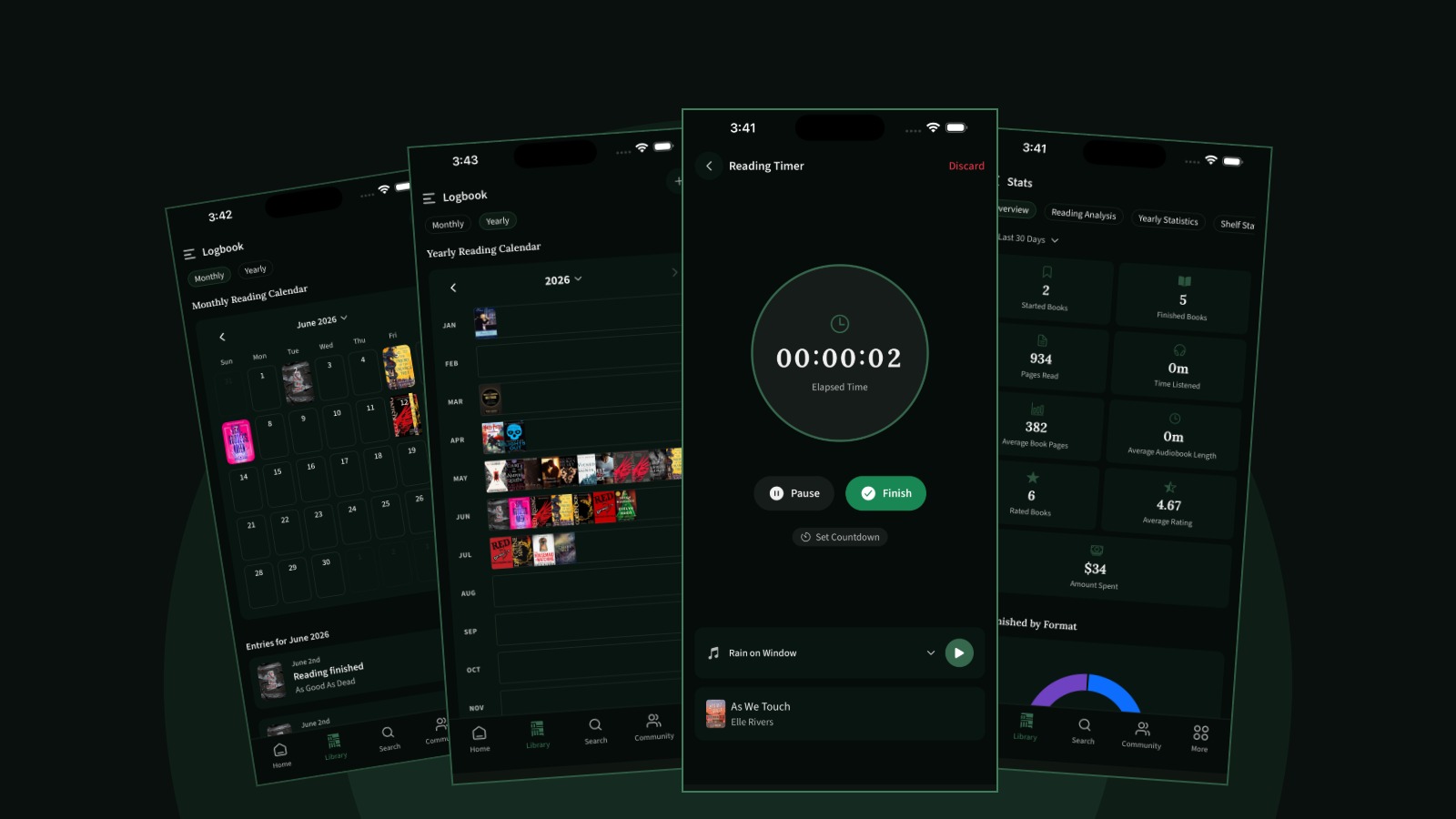
You start it from a book's Quick Actions (Timer), from the clock icon on a reading log card, or from Start Timer in the empty reading log state. The screen shows elapsed time as a large counter with Pause, Resume, Finish, and Discard controls.
The timer is based on wall-clock time rather than a ticking foreground process, which means it keeps counting while the app is in the background or fully closed. Come back an hour later and the time is still accumulating. While it runs, a bar sits above the tab bar on every screen showing the cover, title, and running time, and tapping it takes you back.
Two extras sit under the counter:
Countdown. Set a target length and get a notification when the time is up. There are quick options for 10, 25, 45, and 60 minutes, plus hour and minute pickers. The reminder is a real notification, so it fires even if you have left the app. Pausing the timer cancels it and resuming re-arms it.
Ambient sound. Light Rain, Rain on Window, Fire Crackling, Soft Piano, Coffee Shop Chatter, or Forest Ambience, and your choice is remembered.
When you tap Finish, BookPine asks how far you got. If the book already has a log, you get a progress field and slider. If it does not, you get a short form that creates the log for you and records the session in one step.
Simplified Reading Tracking
Not everyone wants session-level detail. If sessions, dates, and formats feel like more bookkeeping than you signed up for, turn on Simplified Reading Tracking:
Hides reading sessions and dates — just track length and current progress.
It is off by default and lives next to Create Reading Log on Read, on the web under Account → Preferences and on mobile under More → Preferences.
With it on, the reading form drops to two things: how long the book is and how far you are. Start and end dates, book format, the session block, and the View Sessions menu item all disappear. Updating a book becomes a matter of dragging a slider and saving.
The important part is that this only changes what you see. BookPine still records a session behind the scenes each time you move your progress, dated today. Your streak, your calendar, your statistics, and your goals all keep working normally. You are hiding the machinery, not switching it off.
This makes it a good fit if you mostly read one book at a time and update it every few days, or if you are tracking on a percentage scale anyway. If you later want the detail back, turning the setting off restores it, and the sessions recorded while it was on are all still there.
Updating progress day to day
The fastest way to update is the slider on a reading log card. Cards appear on the book's Journal tab, in the Currently Reading widget on your home screen, and in your reading log list.
Dragging the slider does not save silently. On the web it opens the update form with your new value filled in, and on mobile it takes you to the same form pre-filled. You confirm and save. This is deliberate, since progress cannot be undone by dragging back.
The reading log menu also offers Update Progress, View Reading Sessions, and Delete. On a finished log, Update Progress becomes Edit.
A note on editing: changing the unit or the length is not cosmetic. Switching a book from pages to percent rescales every existing session proportionally, and editing the date range either shifts your sessions or re-estimates them from scratch, depending on whether the span length changed. The form warns you when this is about to happen. Sessions that would round down to nothing in the new unit are dropped, so your session count can shrink.
You can edit a finished log's dates, format, and length at any time, but you cannot log new progress against it. Finished means finished.
Did Not Finish and abandoned books
Did Not Finish is a shelf, not a log status. A book you gave up on keeps its unfinished reading log showing how far you got, and moving it to the Did Not Finish shelf is what marks it as abandoned. The Did Not Finish filter in your reading log list works by combining the two: an unfinished log on a book sitting on that shelf.
Finishing a log moves the book to the Read shelf automatically, and starting one moves it to Currently Reading. Custom shelves are left alone.
Reading goals
Goals live under Library → Goals on both web and mobile.
Types: Books Read, Pages Read, Minutes Listened, and Authors Read.
Periods: Daily, Weekly, Monthly, Yearly, and Custom. Daily is only available for Pages Read and Minutes Listened, since a daily book target is not realistic for most people.
Target: any whole number from 1 to 10,000.
Visibility: Public, Community, Followers Only, or Private. New goals are public unless you change it.
You can have three active goals at a time, and only one active goal per type and period combination, so a yearly Books Read goal and a monthly Pages Read goal can coexist but two yearly Books Read goals cannot.
Type and period are locked once a goal is created. You can change the target and visibility, and custom goals can have their name and dates edited, but a monthly goal cannot become a yearly one. Create a new goal instead.
The goal detail screen shows a progress ring with your percentage, your current count against your target, and a short pacing line such as "on pace for" or a note that you are behind. It also lists the books or authors that counted toward the goal, and a period selector for browsing earlier periods.
Recurring goals roll over on their own. When a period ends, BookPine snapshots the result into your goal history and starts the next period fresh. Custom goals do not roll over and do not create history. They simply end.
Archiving is one-way. An archived goal stops updating and cannot be brought back to active, so archive when you are genuinely done with a goal. Deleting removes it and its history permanently.
Goals are not updated in real time
This is the single most common source of confusion, so it is worth stating plainly. The app puts it this way during onboarding:
Goals are based on reading sessions logged in each book journal and are not updated in real time.
Goal progress is recalculated on a schedule, roughly once an hour. Log a session and your goal number will usually catch up within the hour, and in the worst case just under an hour. Nothing is lost in the meantime, it simply has not been counted yet.
Two things run on a different clock and can make this look stranger than it is. The pacing text is calculated fresh every time you open the goal, so it reflects the current date even while the progress number is still an hour behind. And creating or editing a goal triggers an immediate recalculation, so a brand new goal backfills its progress right away rather than waiting for the next cycle.
A few related points that explain most "my goal is stuck" reports:
- Goals read from your reading log, not your shelves. Adding a book to the Read shelf does nothing for a goal on its own unless you also have Create Reading Log on Read turned on.
- Books Read and Authors Read count by finish date, while Pages Read and Minutes Listened count by session date. A book you have been reading for a month contributes pages all month but only counts as a book when you finish it.
- Books Read counts readings rather than distinct titles, so a re-read counts again.
- Authors Read counts each book's primary author only.
- Audiobook progress logged as a percentage counts toward Minutes Listened, not Pages Read. BookPine converts percentage and location sessions into pages or minutes using the book's own length, depending on the format.
- Chapter-based sessions never feed Pages Read or Minutes Listened. They still count for streaks and still show on the calendar, but chapters cannot be converted into pages.
- After a library import, goals lag until the next recalculation, and imports can create a lot of history at once.
The Logbook and the calendars
The Logbook is at Library → Logbook. It holds both calendars behind a Monthly and Yearly toggle, along with an Add Session button.
The first thing to know is that these are not heat maps. A day is not shaded darker because you read more. Instead, days and months are filled with the covers of the books involved, up to three covers per day. A cell with cover art means there was activity, and a plain cell means there was not. Today gets a highlight ring, and the day you have selected is tinted.
Monthly Reading Calendar
A standard month grid, with the week starting on whichever day you chose in preferences.
Three kinds of activity can appear, and you can toggle each one from the options menu:
- Books Started, taken from a log's start date
- Books Finished, taken from a log's end date
- Reading Sessions, one per session date
Your choice is remembered. Tapping a day filters the entry list underneath it, where each entry reads something like "Read 42 pages of Piranesi" or "Listened 1h 10m of Project Hail Mary", with a Clear Selection button to go back to the whole month.
You can navigate back to January of the year of your earliest reading, and one month into the future. The month heading itself is a dropdown if you want to jump somewhere specific.
Yearly Reading Calendar
Twelve rows, one per month, each showing the covers of the books you finished that month. Tapping a month drops you into the monthly view for it.
The key difference is that the yearly view shows finished books only. There is no toggle, and sessions and started books do not appear. A book started in December and finished in January shows up under January, because the finish date is what places it.
The year picker runs from your earliest reading year to the current year.
Both calendars are also available as home screen widgets, listed as Monthly Reading Calendar and Yearly Reading Calendar, and the Library Overview page carries a compact Last 7 Days Activity strip that links into the Logbook.
The options menu on either calendar has a Create Card item, which turns the current month or year into a shareable image sized for social posts.
Streaks
Your streak counts consecutive days on which you logged a reading session. Starting or finishing a book does not extend it by itself, though logging a finished book normally creates sessions and therefore does.
Your current streak stays alive as long as your most recent session was today or yesterday. Missing a single day does not break it, but missing two does. BookPine also tracks your longest streak of all time and shows it when it beats your current one.
Streak data is cached for up to an hour, so a session you just logged may not appear in the count immediately. The widget is called Streak on the web and Reading Streak on mobile, and the empty state suggests logging daily to build one up.
Statistics
Library → Stats has four tabs.
Overview gives you the headline numbers: books started, books finished, pages read, time listened, average book length, average audiobook length, books rated, average rating, and money spent. It also breaks your finished books down by format, genre, reading vibe, and author nationality.
Reading Analysis is about pace: pages per day, time listened per day, average session length, average reading speed in pages per minute, average pages per session, average time listened per session, and average days to finish a book. Below the tiles sit distribution charts for session duration and pages per session.
Yearly Statistics charts a single year month by month, covering books finished, pages read, minutes listened, reading duration, and average rating. Charts with no data at all hide themselves, so if you never listen to audiobooks you will not see the minutes chart.
Shelf Statistics looks at a shelf rather than a period, showing book counts, ownership, and spending.
Overview and Reading Analysis share a Time Period dropdown with ten presets, from This Week through Year to Date, defaulting to Last 30 Days. There is no free-form date picker, and the range cannot exceed a year.
Overview Stats and Reading Analysis are also available as home screen widgets with their own period setting.
Building a home screen around your progress
The home screen is a dashboard you assemble yourself. The widgets most relevant to tracking are Currently Reading, Streak, Monthly Reading Calendar, Yearly Reading Calendar, Goals, Overview Stats, and Reading Analysis.
The Currently Reading widget is the most useful of the group day to day, because it carries the same reading cards with the same progress slider. You can update where you are without opening a book page at all.
On mobile you can build up to three named tabs with five widgets each, and there are Classic, Stats, and Social presets if you would rather start from something ready-made.
Troubleshooting
My goal has not moved. Give it up to an hour. If it still has not moved, check that you logged a reading session rather than only shelving the book, and check that the goal's period actually covers the date you logged.
My reading speed and time stats are empty. Sessions need both a start time and an end time to record a duration. Date-only sessions count as zero minutes.
My pages read looks low. Chapter-tracked books do not convert into pages. Switch the log to pages or percent if you want it counted.
My streak broke even though I read. The streak needs a session dated today or yesterday, and it is cached for up to an hour. Also check your account time zone, since days are counted in your local time.
A book is on the wrong month in the yearly calendar. The yearly view places books by finish date, not start date.
I deleted something by mistake. Deleted books, notes, reviews, and reading logs cannot be recovered.
In short
Log your reading rather than just shelving it, and the rest of BookPine fills itself in. Sessions drive your streak and your pace, finish dates drive your yearly calendar and your books goals, and everything is anchored to your own time zone and your own week start.
If the full session-level system is more than you want, turn on Simplified Reading Tracking and update a slider now and then. You will still get calendars, statistics, streaks, and goals, just without the paperwork. And whichever way you track, remember that goals catch up on the hour rather than the instant, so a number that has not moved yet is almost always a number that simply has not been counted yet.