


Moving away from Goodreads shouldn't mean losing years of reading history. BookPine imports your full Goodreads export: books, ratings, reviews, shelves, dates read, and read counts.
The whole thing takes about five minutes. You export a file from Goodreads, upload it to BookPine, and that's it. You don't need to edit the file at any point.
Part 1: Export your library from Goodreads
Goodreads only lets you export from the desktop website. If you're on a phone, open goodreads.com in your mobile browser and request the desktop site, or just do this step on a computer.
Step 1: Sign in to Goodreads
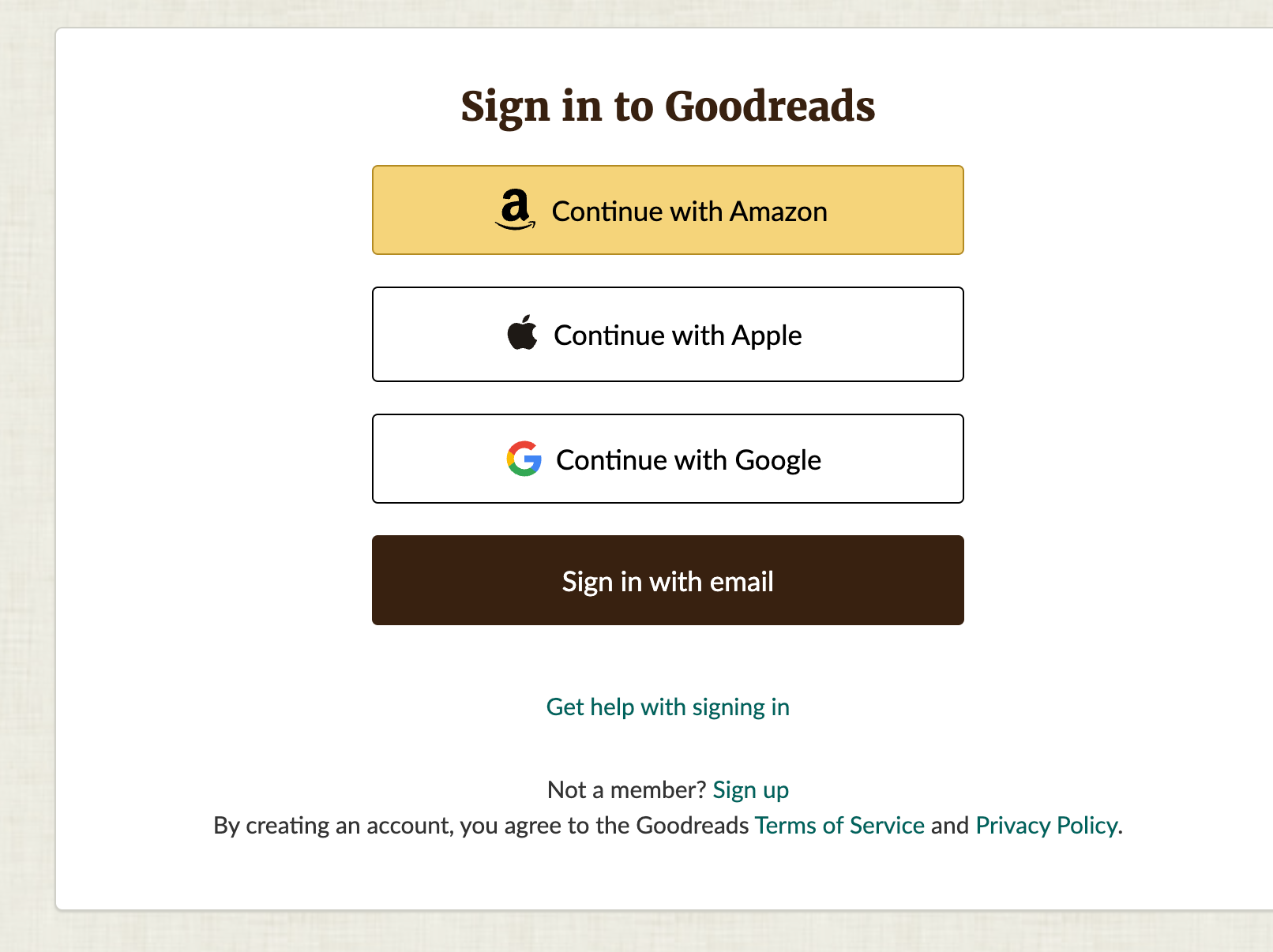
Go to goodreads.com and sign in with Amazon, Apple, Google, or email.
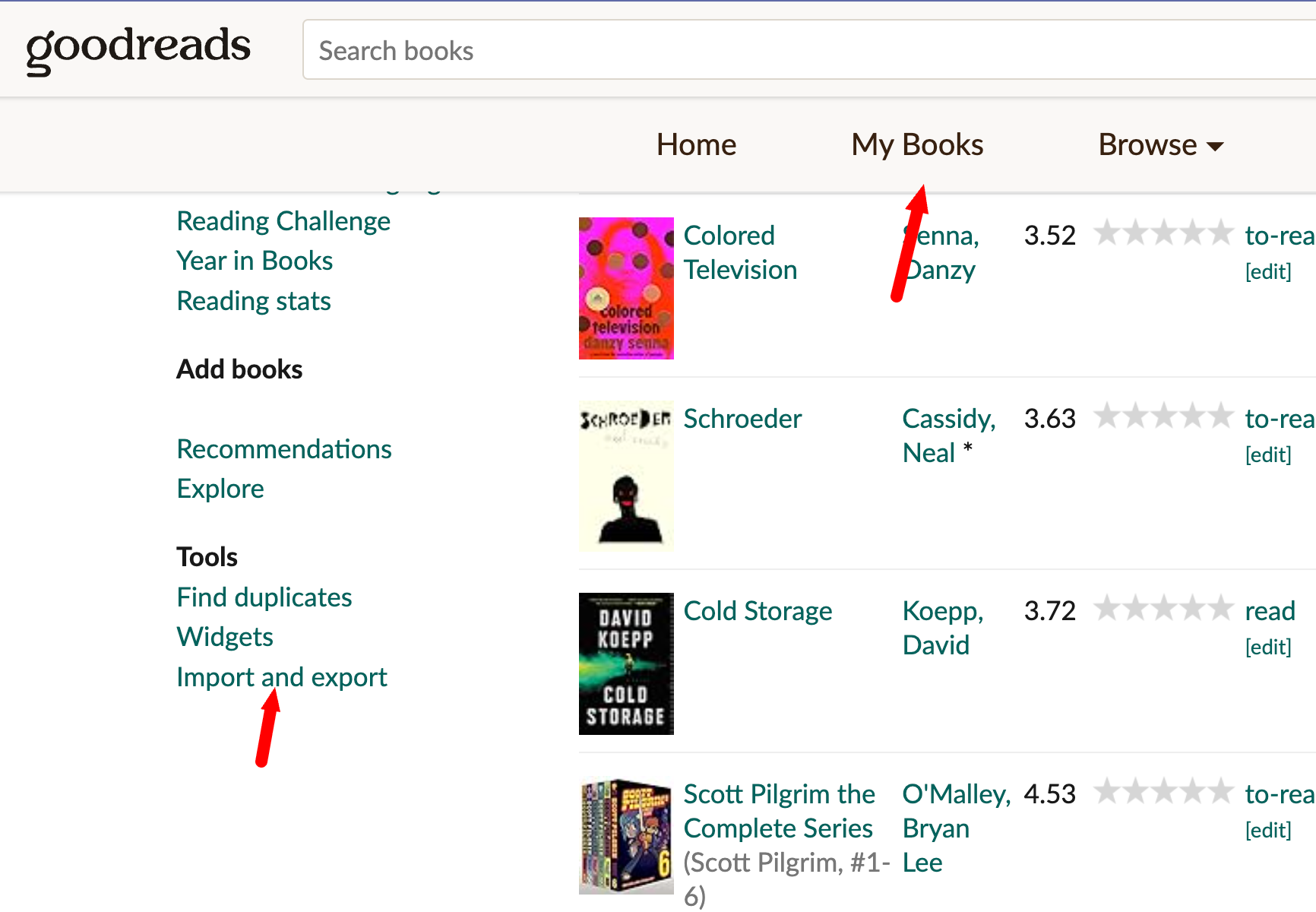
Step 2: Open My Books, then Import and export
Click My Books in the top navigation. Scroll down the left sidebar until you reach the Tools section, then click Import and export.
You can also go straight to the page: goodreads.com/review/import
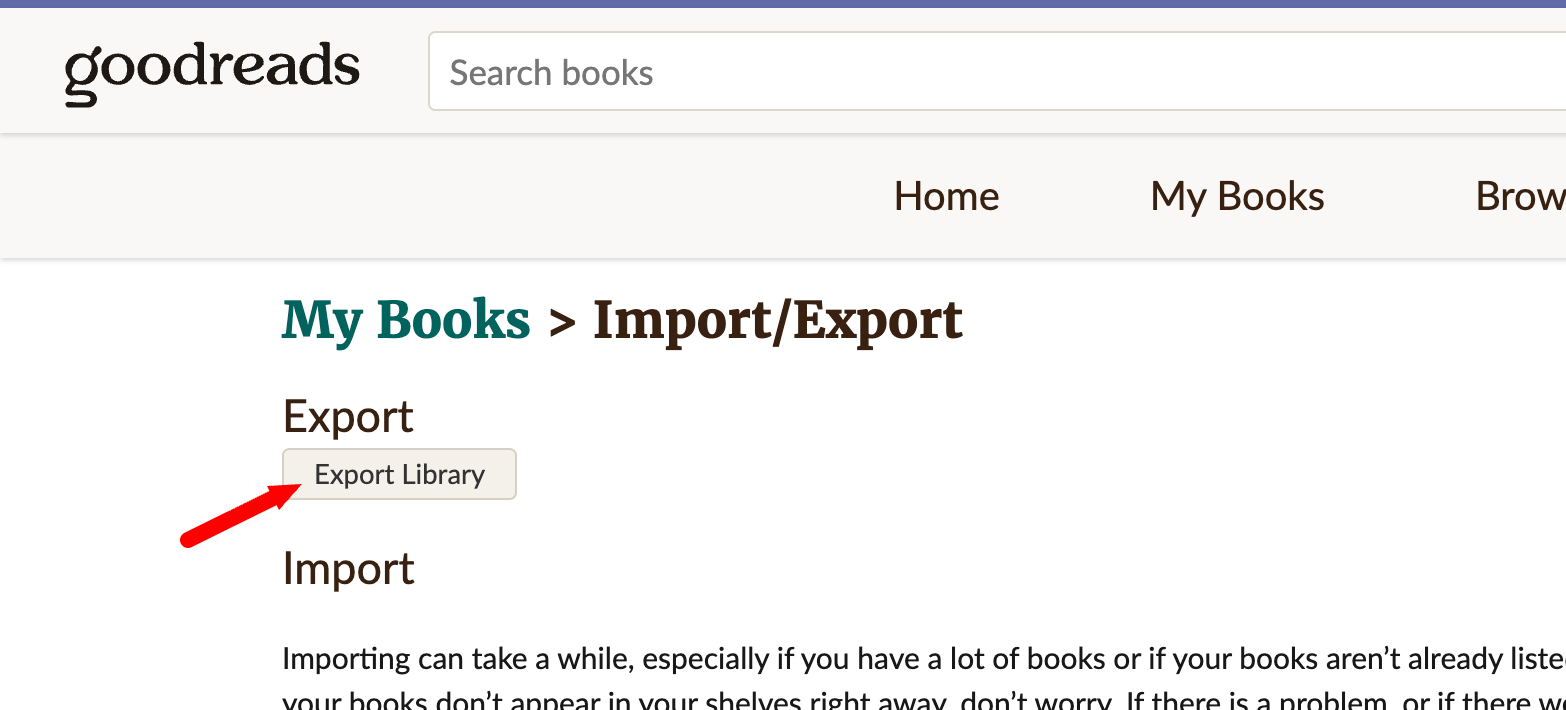
Step 3: Click Export Library
On the Import/Export page, click the Export Library button under the Export heading.
Goodreads now builds your file in the background. This usually takes a few seconds, though a library with a few thousand books can take a couple of minutes.
Step 4: Download the file
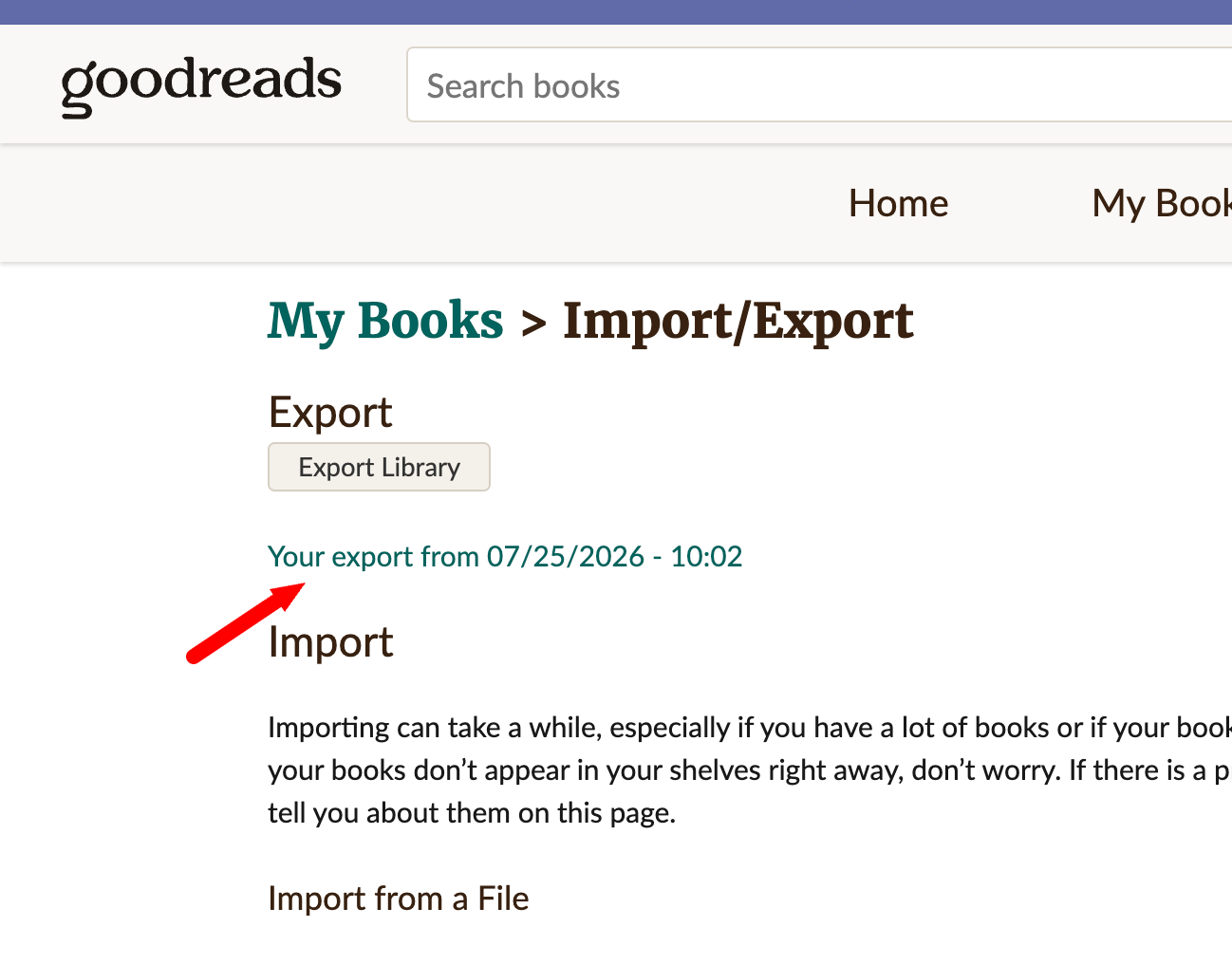
Refresh the page after a moment. A link will appear that reads Your export from [date] - [time]. Click it to download the file.
The file lands in your downloads folder as goodreads_library_export.csv. Keep it there. Don't open it in Excel and re-save it, and don't rename the columns. BookPine reads it exactly as Goodreads produced it.
What's inside the Goodreads export file
The export is a plain CSV file (comma separated values) with a single header row and one row per book on your shelves. Every book you've shelved is in there, on every shelf, whether you rated it or not.
Goodreads exports 23 columns in total, covering the title, author and co-authors, ISBN and ISBN-13, publisher, binding, page count, publication years, your rating, your review, private notes, read count, owned copies, the dates you added and finished each book, and all of your shelves.
You don't need to change anything
Some of it looks odd when you open it in a spreadsheet: quoted values, empty fields, series numbers stuck inside the title. That's normal Goodreads formatting, and BookPine reads it correctly.
Upload the file exactly as it downloaded. There's nothing to clean up, no columns to remove, and no reason to convert it to XLSX.
Part 2: Import into BookPine
The import screen works the same way on mobile and on the web. Use whichever one has your export file on it.
On mobile (iOS and Android)
- Open the Library tab and tap the menu icon in the top left.
- Scroll down the menu and tap Import / Export.
- Under Import Library, set Import Source to Goodreads.
- Tap Tap to choose a file and pick your goodreads_library_export.csv from Files, Downloads, Drive, or wherever you saved it.
- Optionally flip on Store original entry data as a note. This saves the raw row from your export as a note on each book, which is handy if you ever want to double check a page count or publication year. Leave it off if you prefer clean notes.
- Tap Import Library.
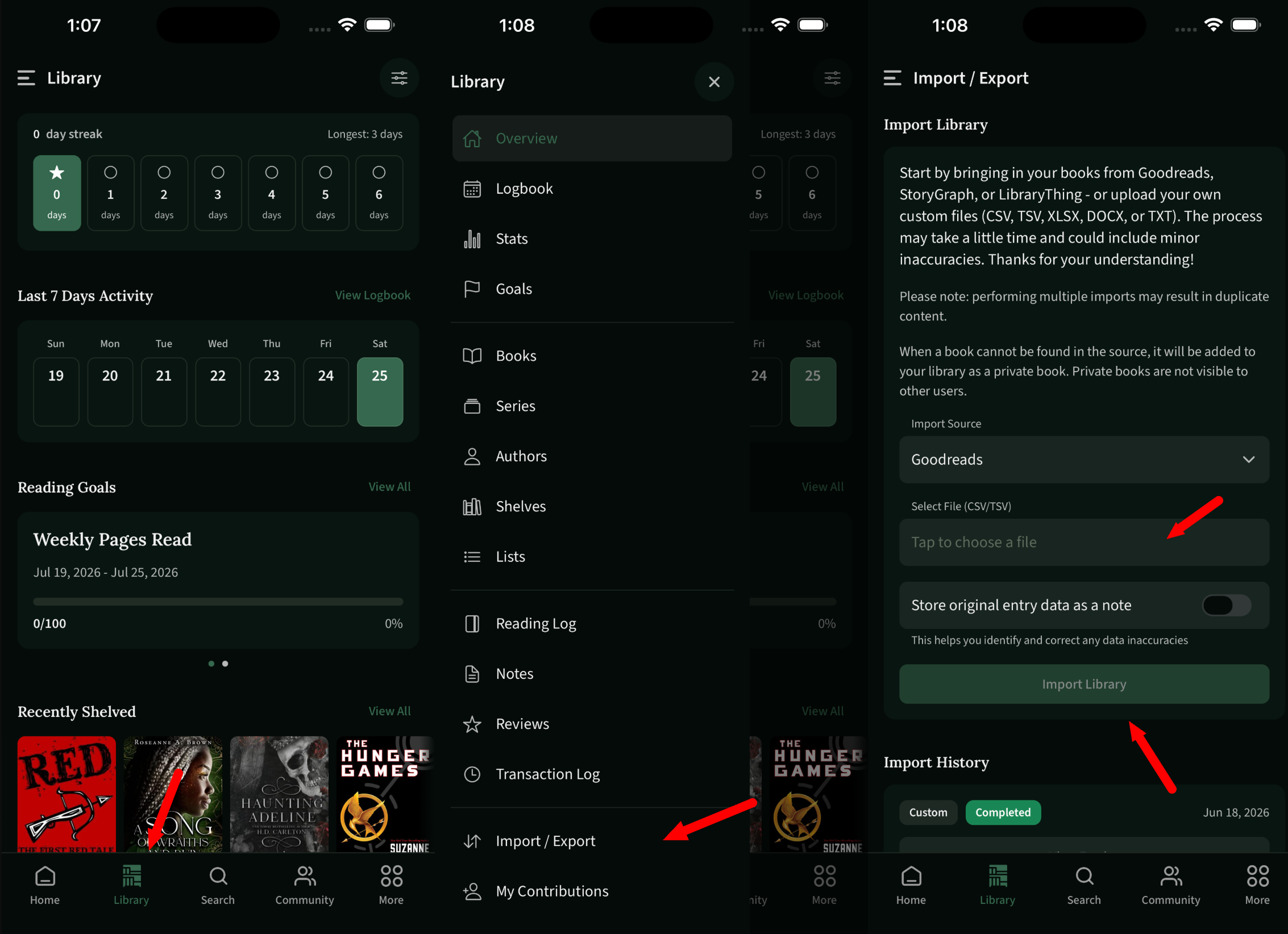
Your Import History sits right below, showing each past import with its source and status.
On the web
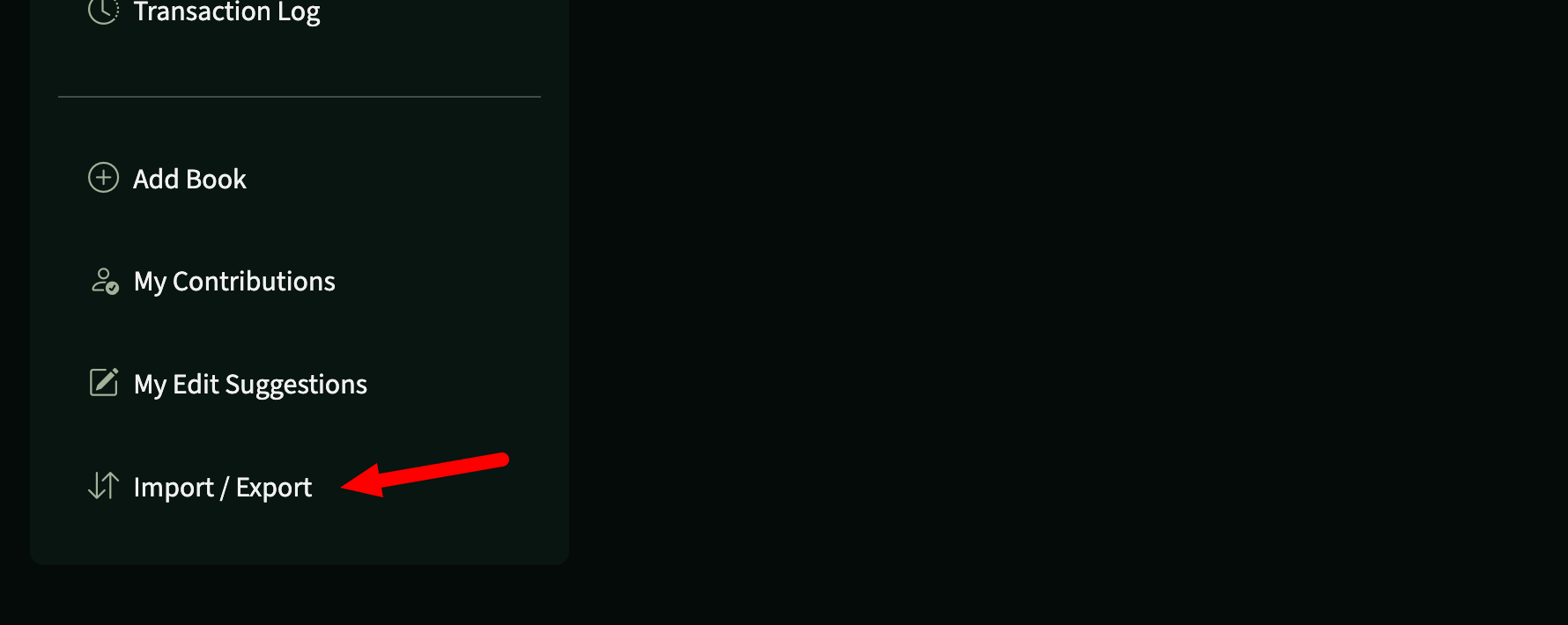
Sign in at bookpine.com, open your Library, and click Import / Export at the bottom of the left sidebar.
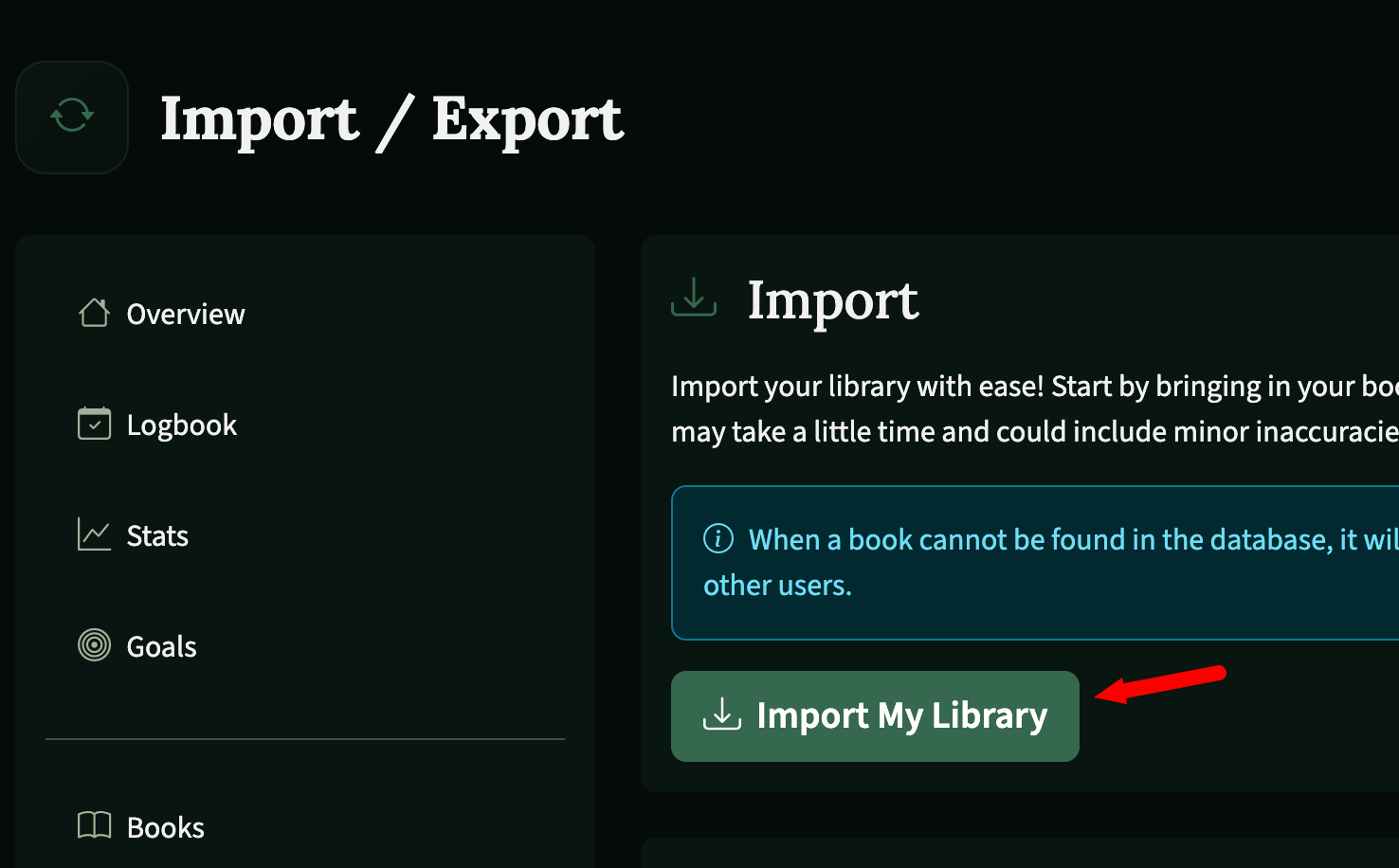
Click Import My Library in the Import panel.
Choose Goodreads as the import source, select your goodreads_library_export.csv file, set the Store original entry data as a note toggle how you like it, then click Import Library.
The import runs in the background, so you can keep browsing while it works. Larger libraries take longer. When it finishes, the job shows as Completed in your Import History.
What happens after the import
BookPine matches each book against its database, first by ISBN, then by title and author. Most books land on the right edition straight away.
If a title isn't in the database, BookPine still adds it to your library as a private book that only you can see, so nothing gets dropped. If it's a book you think others would want, you can suggest it as a public book later through My Contributions.
Your shelves come across too. Goodreads' three exclusive shelves map to BookPine reading statuses (read, currently-reading, and to-read), and every custom shelf you created (favorites, dnf, owned, 2024-reads, whatever you used) is recreated as a BookPine shelf.
Ratings, reviews, and dates all carry over as well. BookPine supports half-star ratings even though Goodreads only exports whole stars, so you can refine those afterwards if three stars never felt quite right for that one book.
Accuracy is good but not perfect. Series numbering, edition page counts, and publication years occasionally need a nudge, especially for translations and box sets. That's exactly what the "store original entry data as a note" option is for.
Tips and troubleshooting
How long will the import take? It runs in the background, so you can close the app or keep browsing while it works. A small library finishes in a few minutes; a few thousand books can take a few hours. Check the Import History for the status, and once the job reads Completed, everything is in.
Import once. Running the import twice with the same file creates duplicate entries. If you do end up with duplicates, use Bulk Edit to clean them out rather than starting over.
Waiting on the Goodreads download? The export link only appears after Goodreads finishes building the file. Refresh the page. If nothing shows after a few minutes, click Export Library again.
Nothing happens when you upload? Check that the file still ends in .csv and still has its original header row. If you opened it in Excel and saved it at some point, export a fresh copy from Goodreads and upload that instead.
Wrong edition imported? Sometimes a book matches to a different edition than the one you actually read, like a hardcover when you read the paperback, or an English edition instead of a translation. Open the book's page and use Change Edition to switch it. Your rating, review, and reading dates stay put.
Coming from somewhere else? BookPine also imports from StoryGraph and LibraryThing, plus custom files in CSV, TSV, XLSX, DOCX, and TXT. Just switch the Import Source dropdown.
Want your data back out? The same Import / Export screen exports your BookPine library whenever you want it. You're never locked in.
That's the whole process
BookPine is free on iOS, Android, and the web. Once you're in, you'll find custom shelves, reading goals, a reading timer, half-star ratings, a DNF shelf, content warning tags, and Reading Circles. There are no ads, and your reading data never gets sold.